Free while in beta
Turn a photo you love into a painting you made
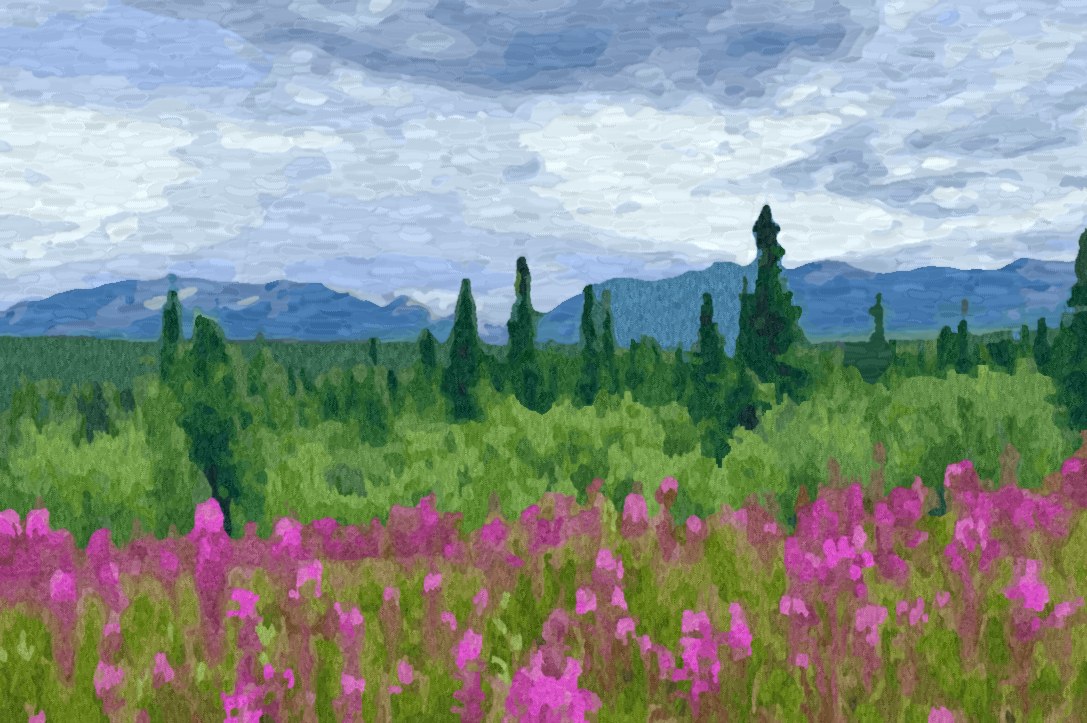
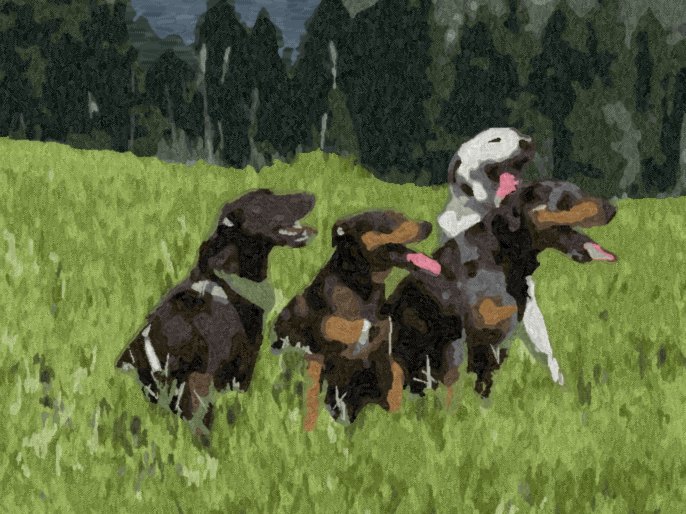
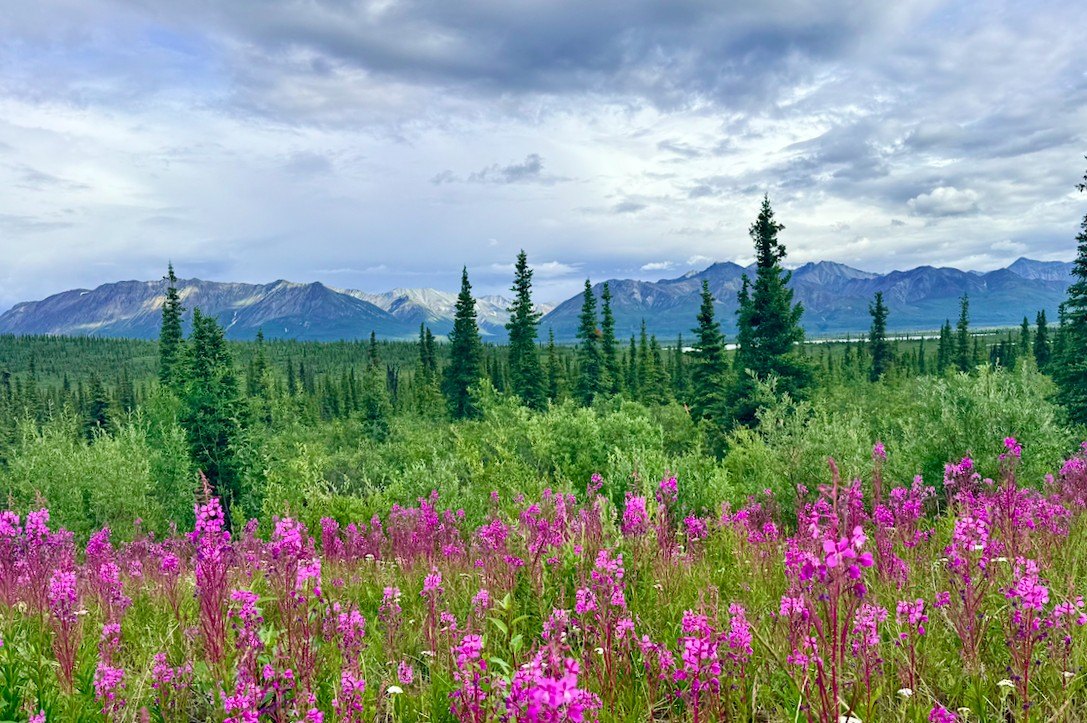 Your photoYour painting
Upload any photo. OmniCraft gives you a numbered template, the paints to buy with their mixing recipes, and a guide that walks you through every step, the way a painter would.
- No account needed
- Phone photos work great
- Pets, places, people
How it works
From photo to painting in three steps
 1
Upload a photo
A pet, a favorite place, a garden in bloom. A clear phone photo is all it takes.
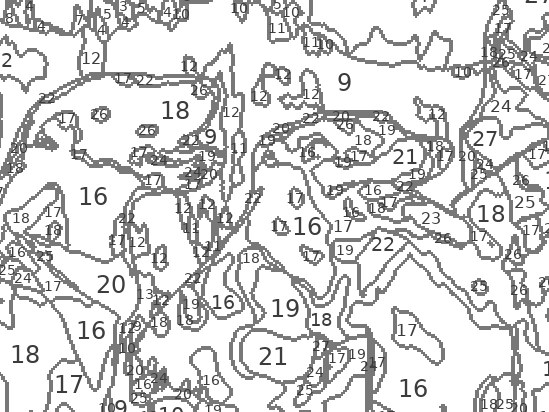
- 16Carbon Black
- 19Van Dyke Brown
- 21Mars Black + Yellow Ochremix 4:6
2Get your painting kit
A numbered template to print, the paints to buy, and a mixing recipe for every color.
 3
Paint it step by step
The guide takes you from the sky to the last highlight, one small step at a time.
Examples
As simple or as detailed as you like
The same photo at each level of detail. Every clip plays back the real guide the app made for it: the numbered canvas, then each step in order, base coats first and the layers on top.
More colors, plus lighter and darker mixes for richer shading: right for most photos.
The guide
Never wonder what to paint next
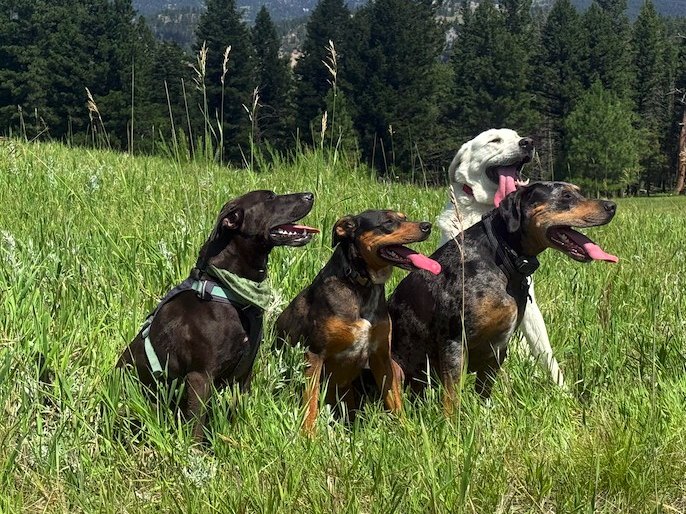
Every painting comes with a guide that works back to front, the way painters do: each part blocked in first, then layered. This is the one the app made for the four dogs at the Balanced level, in 36 small steps.
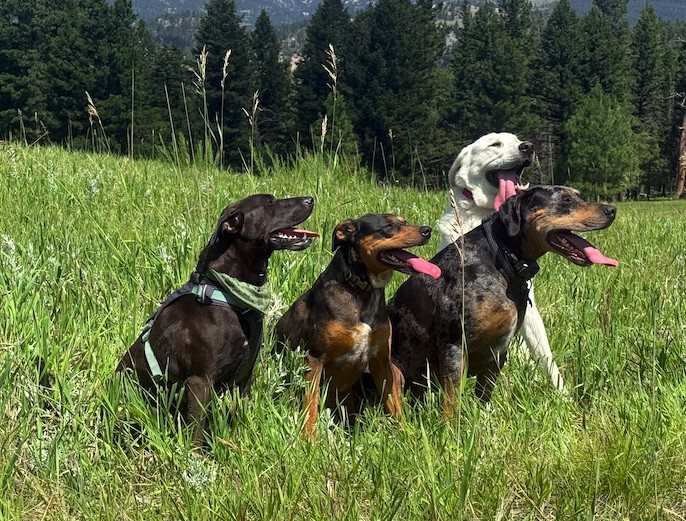
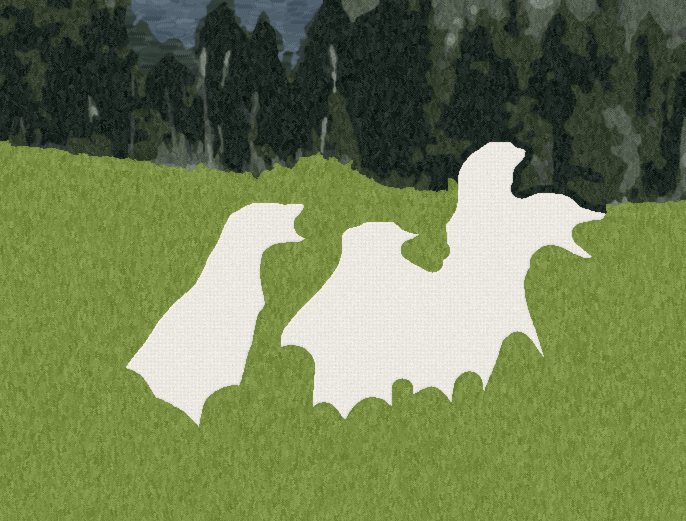
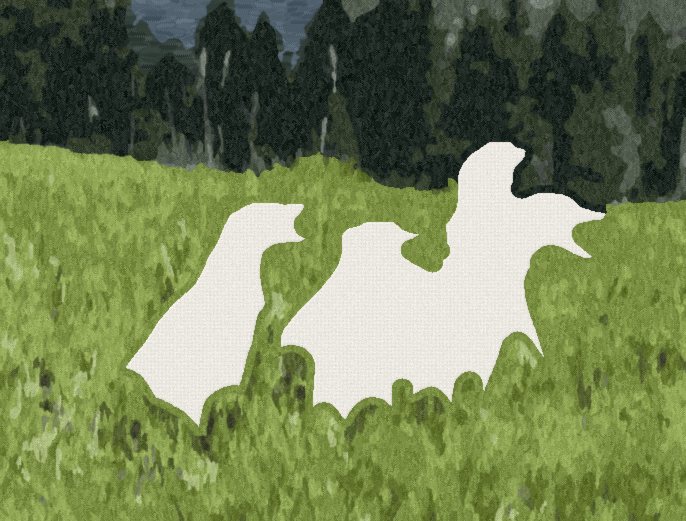
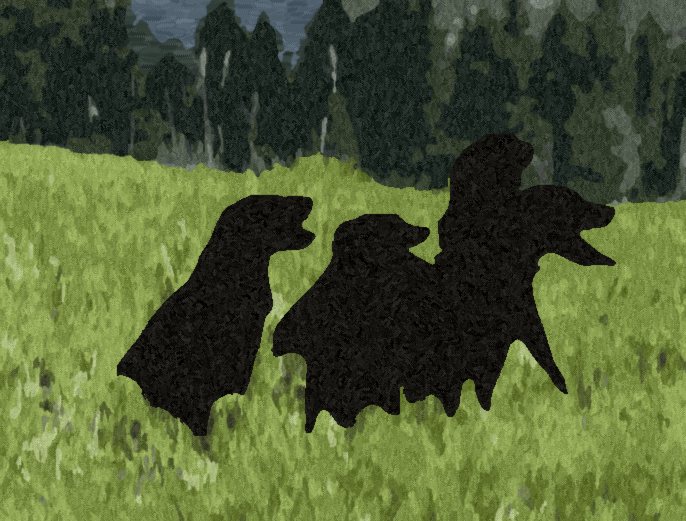
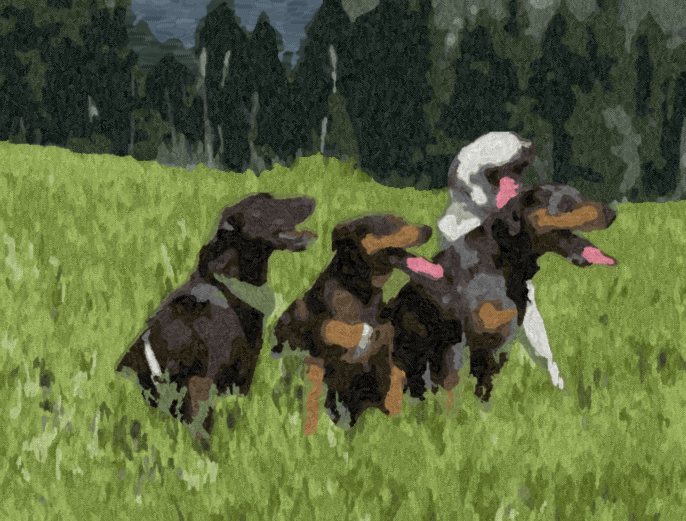
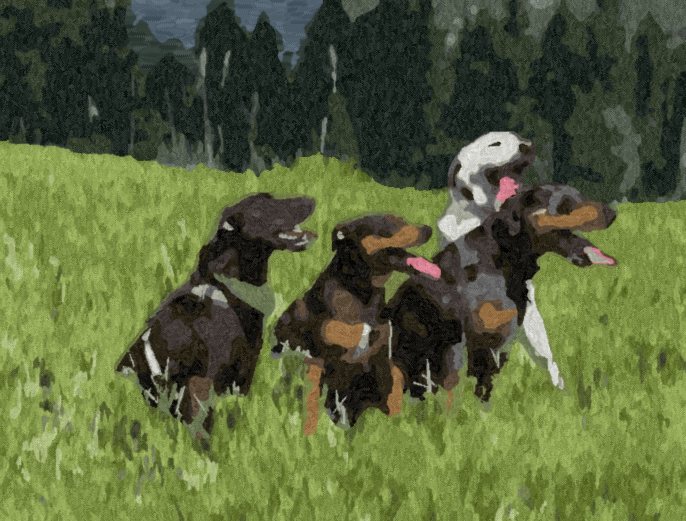
The photo you upload
The photo you upload
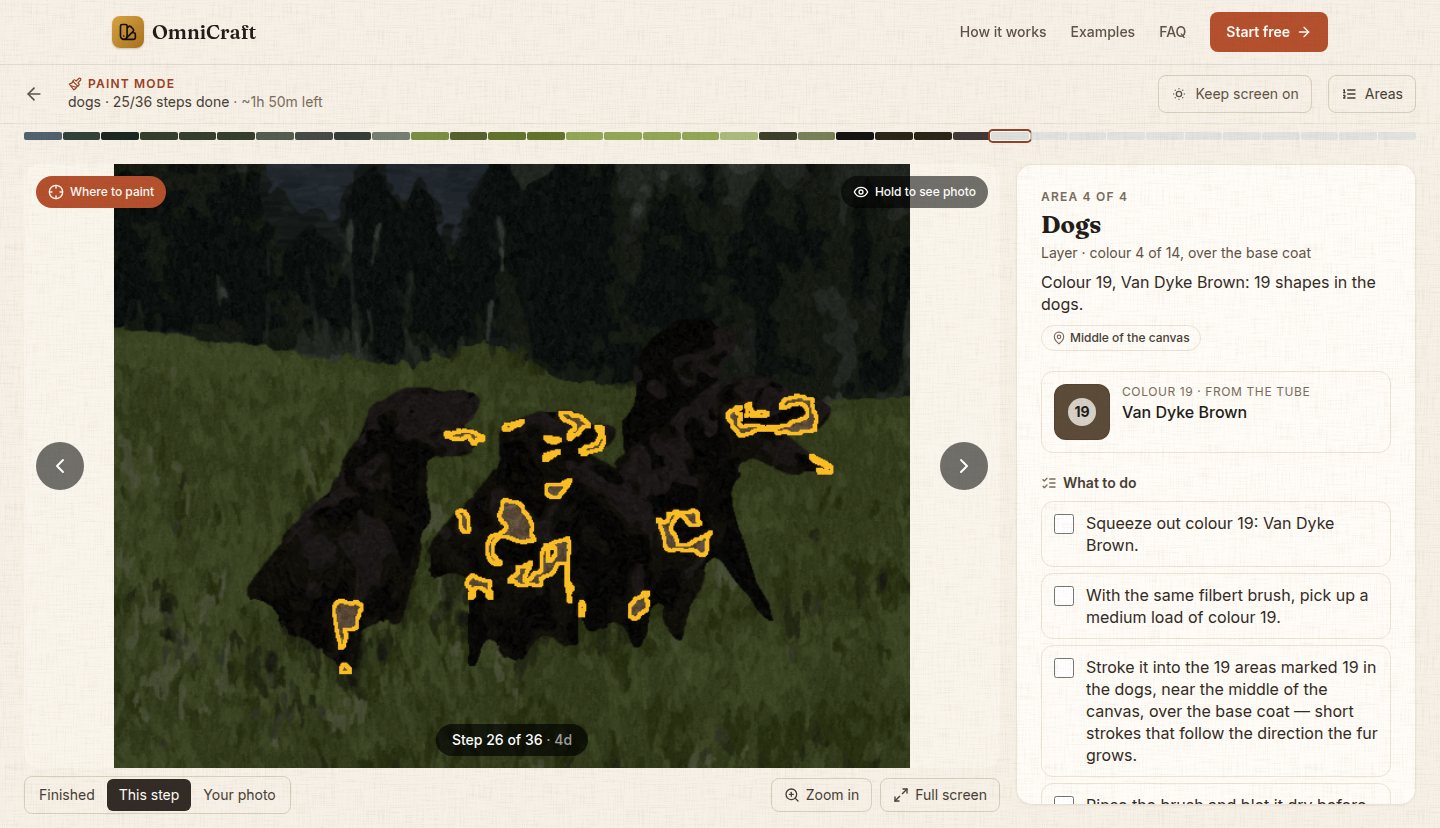
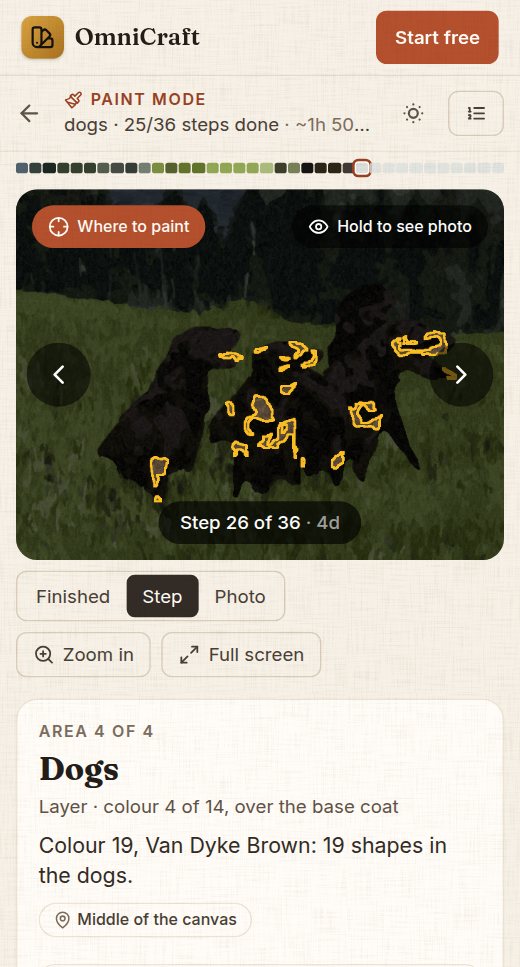
Paint mode: a guide at your easel
Prop up your phone or tablet and follow along. Paint mode shows one step at a time, big and clear, and you tick it off when it’s done.
One small step at a time
Block in each part, then layer the shading and highlights on top. Every step is one color, with a short checklist.
See exactly where to paint
Paint mode outlines the areas for the step you’re on and dims the rest of the canvas.
The right paint, every time
Each step names the tube to use or the recipe to mix, with the brush and the stroke.
Pick up where you left off
Your progress is saved on your device, so a painting can take an evening or a month.
Free while in beta
Everything you need, free
Every painting comes with the whole kit. No account or credit card needed.
Create your painting- A printable numbered template
- The step-by-step guide, as a PDF and in Paint mode
- A paint list with real brands, amounts and buy links
- A mixing recipe for every color
FAQ
Questions, answered
Is it really free?
Yes. While OmniCraft is in beta, every painting is free, with everything in it: the template, the guide, the paint list and the mixing recipes. No account or credit card needed.
What do I need to paint it?
Acrylic paints, a few brushes and a canvas or heavy paper. Your paint list names each paint and how much you’ll need, and every step says which brush to pick up.
Where do I get the paints?
Any art shop or online. Your paint list names each tube and how much you’ll need, with a link to find it, and any similar acrylic works. Many colors are mixed from a few tubes, and the recipes say how.
Can I get my painting printed on a canvas?
Soon. We’re setting up canvas prints: your painting’s sketch printed on artist canvas and delivered, ready to paint, from $29 with US shipping. Leave your email on your guide’s page and we’ll tell you when it opens. Your guide stays free either way.
What photos work best?
Clear, well-lit photos with a simple scene or one main subject: pets, landscapes, flowers, favorite places. Phone photos are perfect, including iPhone HEIC files, up to 20 MB. Very dark or blurry photos give muddier results.
Can I make it simpler or more detailed?
Yes. Before you create your guide, choose Simple for a few colors and fewer steps, Balanced for richer shading, or Detailed for the most colors and the finest detail. Every level keeps the photo’s detail; Advanced settings let you paint in bolder, simpler shapes instead. Balanced and Detailed also mix lighter and darker versions of a color with a little white or black, so you get more shades from the same tubes.
How long does it take?
Making the guide takes a minute or two. Painting takes as long as you like: each guide estimates its painting time, and Paint mode counts down what’s left as you go.
Can I print it?
Yes. Download the numbered template to print and transfer onto your canvas, and a PDF of the whole guide to keep beside your easel.
What happens to my photo?
It’s used to make your painting and nothing else. Our Privacy Policy has the details.
Read the Privacy PolicyYour next painting is already on your phone
Pick a photo you love and see it as a painting in a couple of minutes.